Morse Chat
Morse Chat lets you exchange CW over the internet with other operators. Actual keying timing is transmitted, not just text. If nobody is online, you can also practice with the built-in AI chat partner.
Live Morse Chat
DL2CC-REMOTE-CW's live chat system transmits your real keying timing data to other operators. On their side, the timing is played back as CW audio. Each participant has a distinct tone frequency so you can tell who is sending.
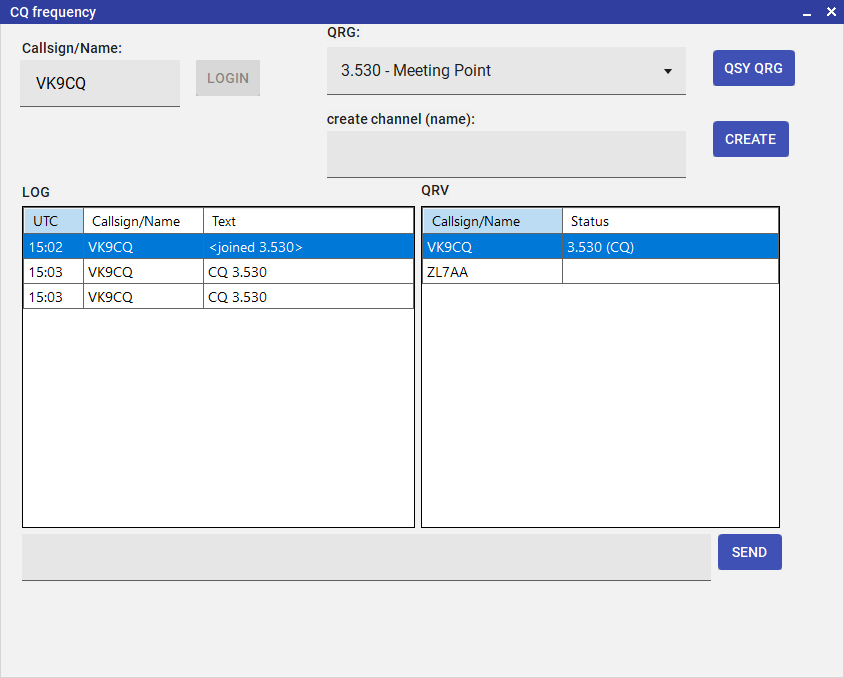
Morse Chat Lobby — see who is online and join or create frequency channels
The Lobby
When you open Chat → Morse Chat, you enter the Lobby first. The lobby shows all online operators with their callsigns, current status, and which frequency (room) they are in. From here you can:
- See who is online right now.
- Browse available frequency channels and join one.
- Create your own frequency channel (you become the admin).
- Send a Private QSO request to another operator for a 1-on-1 session on a private channel.
- Exchange text in the lobby channel.
Inside a Room
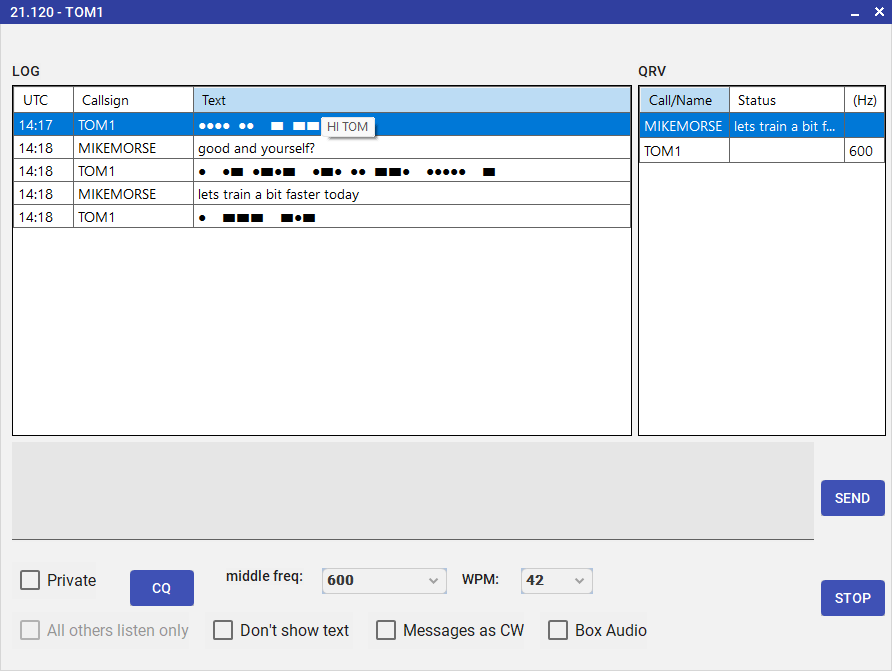
Chat Room — real CW timing exchange with other operators
Inside a chat room you can see all participants and exchange CW:
- Send via DL2CC Box — key on your paddle. The timing is sent to all room participants in real time.
- Receive — other operators' CW is played back as audio through your PC or DL2CC Box, each on a distinct tone.
- Decoded text — received CW is also shown as text.
Visual CW in the Chat Log
While operators key, their transmission is rendered live in the chat log as a sequence of
dot/dash symbols — ● for a dit and ▬ for a dah. Each operator gets
their own row that grows in place as more elements arrive, so multiple stations can transmit
at the same time without their visuals interleaving. Both the sender and the receiver see the
same line, so you can verify what your keying looks like as it goes out.
- Adaptive timing — the renderer estimates each operator's dit length from the recent ON durations they sent, then scales dit/dah and gap thresholds accordingly. No WPM setting is required and operators of different speeds can share a room without misclassification.
- Character spacing — a wider gap appears between characters; an even wider gap marks an inferred word break.
- Hover for decoded text — point at any CW row in the log and a tooltip shows the
receive-side decode for that transmission, e.g.
CQ DE W1AW. The decode updates live as characters complete. - End of transmission — about 600 ms after keying stops, the last element and its decoded character appear (the wire does not carry the closing pause for the final element). After three seconds of silence the row is closed; the next keying from that operator starts a fresh row.
- Mixed with text messages — when an operator sends a typed message, their current CW row is finalized and the text message appears below it, keeping the chronology of the conversation intact.
- Privacy — the No Message Output admin control hides both the visible
glyphs (replaced with
<...>) and the decoded tooltip for non-self users, so listeners must copy by ear only.
Room Admin Controls
If you created the channel, you are its admin. Admin controls let you manage the room:
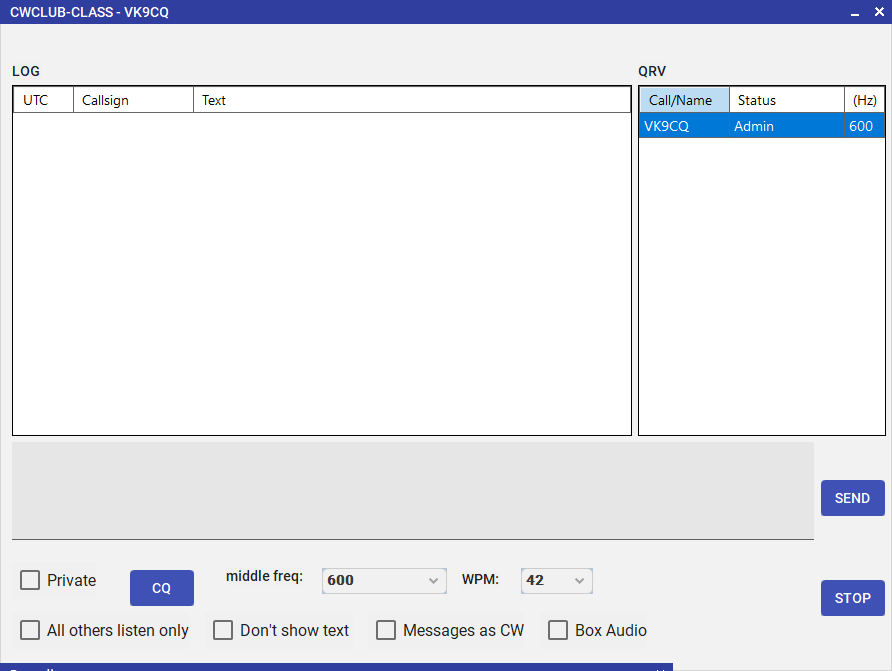
Room admin controls — listen-only mode, CW relay, and text suppression
| Control | Effect |
|---|---|
| Listen-Only Mode | Participants can hear but cannot transmit CW. Useful for training sessions or demonstrations. |
| Play Messages as CW | Typed text messages in the room are automatically converted to CW audio and played for all. |
| No Message Output | Suppresses the decoded text display — operators must copy by ear only. Good for practice. |
QSY
As room admin, you can invite all participants to QSY to a different frequency channel. All members receive the invitation and can follow with a single click.
AI Morse Chat
Practice conversational CW at any time, even without another operator. DL2CC-REMOTE-CW's AI Chat uses OpenAI GPT to respond to what you send. You key your message on the paddle and the AI replies in CW audio.
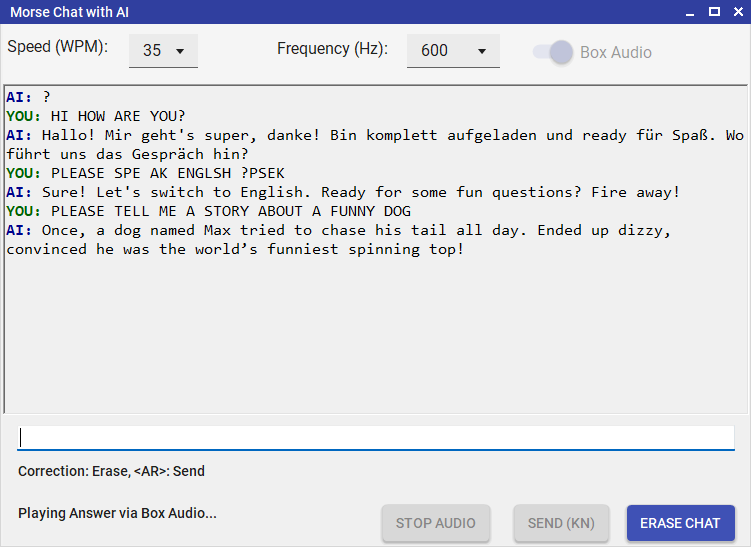
AI Morse Chat — conversational CW practice with OpenAI GPT
How It Works
- Open Chat → AI Chat from the dashboard.
- Set your preferred WPM and sidetone frequency.
- Key your message on the DL2CC Box paddle. DL2CC-REMOTE-CW decodes what you send.
- End your message with VVV=. DL2CC-REMOTE-CW relays the decoded text to the AI only when it receives this sequence.
- The AI response is played back as CW audio at your chosen speed.
Settings
| Setting | Description |
|---|---|
| WPM | Speed at which AI responses are played. |
| Frequency (Hz) | Tone frequency for the AI's CW playback. |
| API Key | Your own OpenAI API key for unlimited use. A built-in demo allowance is included for trying out the feature. Set in Settings → Settings. |
Morse Chat Web Client
The Morse Chat Web Client is a browser-based version of the live chat system. It runs in a modern browser without DL2CC-REMOTE-CW desktop installation. Operators can join the same lobby and rooms as DL2CC-REMOTE-CW desktop users, hear CW playback directly in the browser, send text, key CW with the spacebar or on-screen key, and — on a desktop browser — key with a real straight key or paddle through a connected DL2CC Remote CW Box.
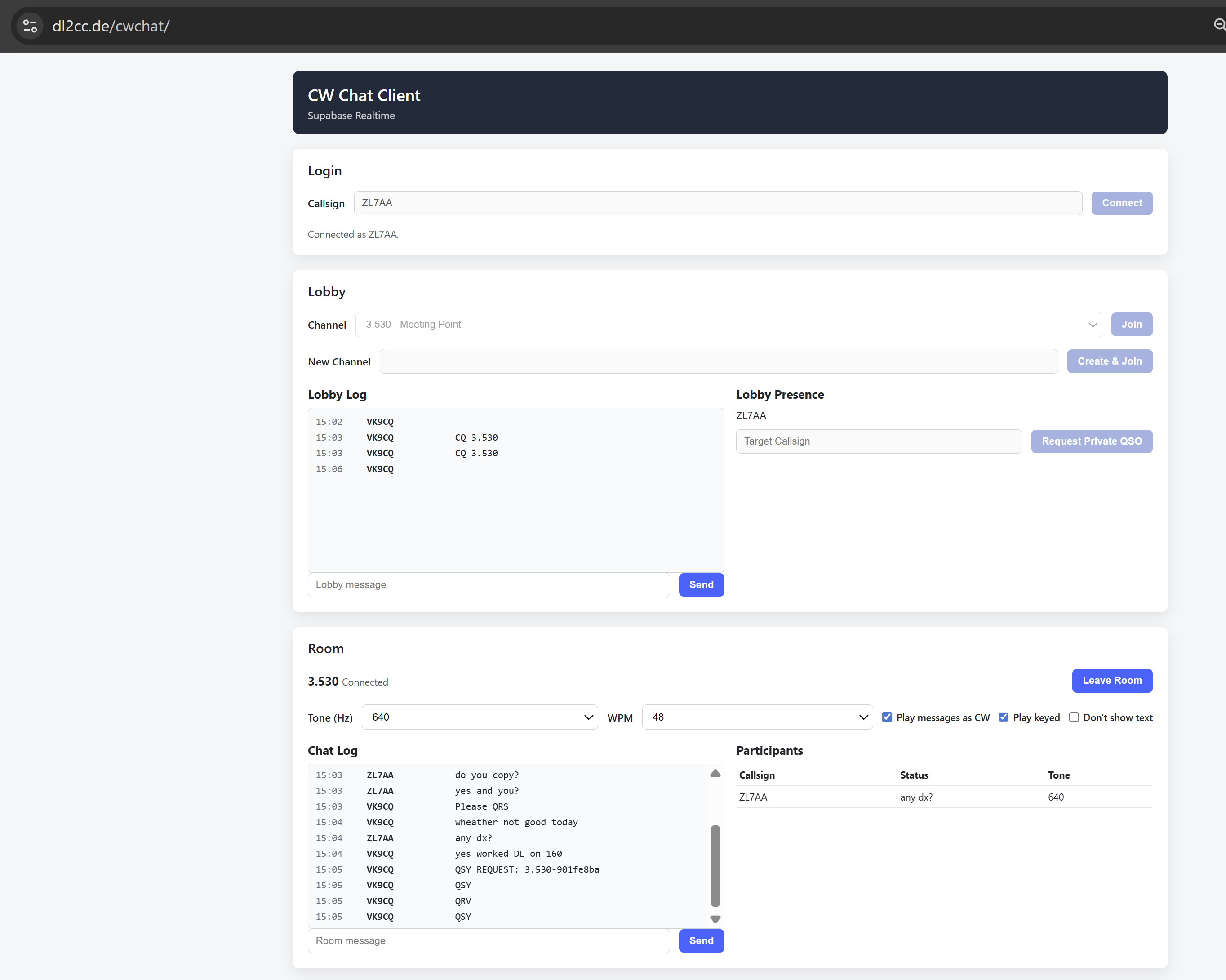
Morse Chat Web Client — browser-based lobby, room, and CW playback
Features
- Lobby — see online operators, browse and join channels, create a new channel, or request a private QSO.
- CW playback — received keying timing is played back as CW audio in the browser using the Web Audio API.
- Per-participant tones — each station is assigned a distinct sidetone frequency, matching the same scheme used in the desktop client.
- Text messages — send and receive room messages; optionally have messages played back as CW.
- Play messages as CW — typed text messages from any participant can be rendered as CW audio in the browser.
- WPM and tone selection — choose your preferred playback speed and sidetone frequency per session.
- Keying from the browser — send CW with the spacebar or the on-screen key on any device, including phones and tablets.
- DL2CC Box keying — on a desktop browser you can also key with a real straight key or paddle through a connected DL2CC Remote CW Box, alongside the spacebar.
- Box reconnect — once the box has been used, it is reconnected automatically the next time you open the client, with no prompt.
Sending CW with the DL2CC Box
On a desktop browser the web client can take keying directly from a DL2CC Remote CW Box over USB. Connect the box, press Connect box key, and pick the serial port once. The box is placed in training mode so keying the chat never keys a connected transmitter, and the box's own sidetone is used for your sending. The spacebar / on-screen key stays available at the same time.