Tools & Utilities
Utilities for analysing your sending, generating practice audio, and using your CW keyer as a keyboard in Windows applications. Operating tools such as Keyer, Audio Decoder, and DX Cluster are covered in the Remote Station section.
TX Decoder
Shows what you are sending, with real-time timing charts and optional competition scoring.
Jump to section →Keyboard Simulator
Key on your paddle. Decoded characters are sent as keystrokes to the active application.
Jump to section →CW Audio Generator
Convert text to Morse code audio. Speed and tone frequency can be adjusted.
Jump to section →TX Decoder
Connect your CW keyer through the DL2CC Box and see what you are transmitting. The TX Decoder provides real-time keying analysis so timing errors and repeated problems become visible.
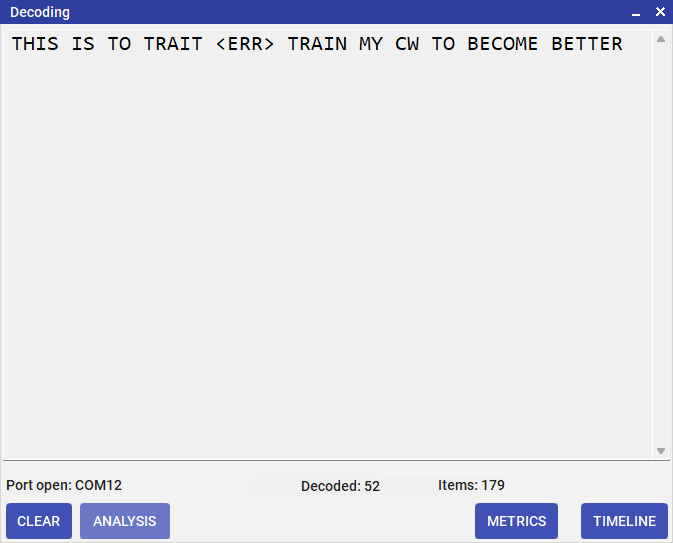
TX Decoder — real-time CW analysis while you key
Live Metrics
| Metric | Description |
|---|---|
| Decoded text | Real-time decoded characters as you key, shown alongside the expected reference text. |
| WPM & LPM | Words and letters per minute, updated after every character. |
| Dot / Dash length | Mean and standard deviation of element durations in microseconds. Ideal ratio is 1:3. |
| Dot/dash ratio | Numeric ratio showing how close your dash/dot length is to the perfect 3.0. |
| Timing timeline | Graphical bar-chart of every element in the current character — each dit, dah, and space shown to scale. |
Two view buttons let you switch the lower panel: the Metrics button shows WPM, dot/dash ratios, and element statistics; the Graph button switches to a graphical element-by-element timing visualisation.
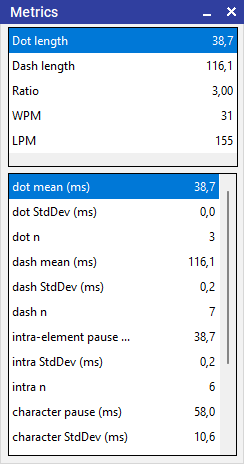
TX Decoder Metrics button — WPM, dot/dash ratios and element statistics
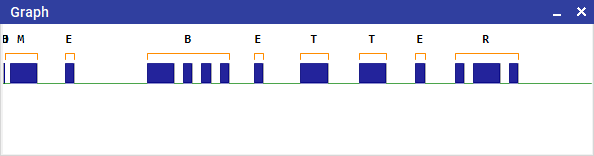
TX Decoder Graph button — graphical element-by-element timing visualisation
Competition Scoring Mode
The TX Decoder can also be used for competition preparation. Load a reference text, key VVV= to start timing, and key the full text. At the end, DL2CC-REMOTE-CW produces a detailed accuracy report:
- Every character is aligned against the reference using sequence alignment — matches, insertions, deletions, and substitutions are colour-coded.
- An overall accuracy score is computed and saved to your output folder as a text file.
- Texts are identified by sequence number, allowing organised practice sessions.
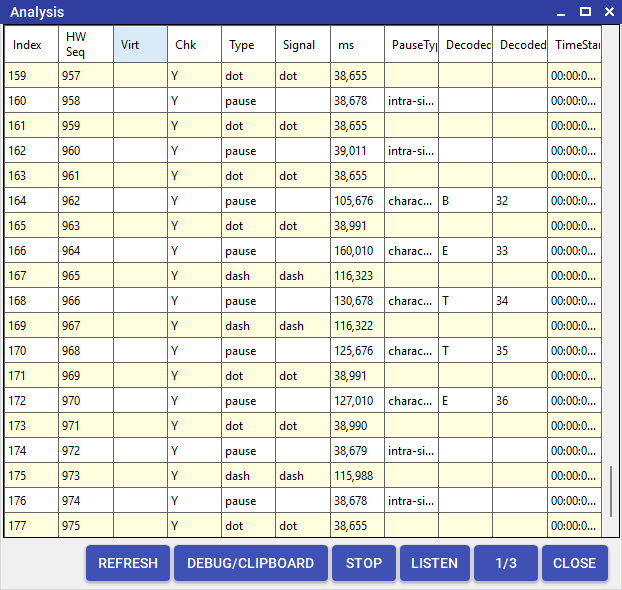
TX Decoder analysis — character-by-character alignment with colour-coded match/error view
Straight Key Mode
Enable Straight Key mode to apply a more generous decoding tolerance — suited to straight key timing variation and bug keying. This setting is also available in the TX Competition.
Keyboard Simulator
Turn your CW keyer into a keyboard. Key Morse code on your paddle and DL2CC-REMOTE-CW decodes each character and sends it as a keystroke to the application that currently has focus.
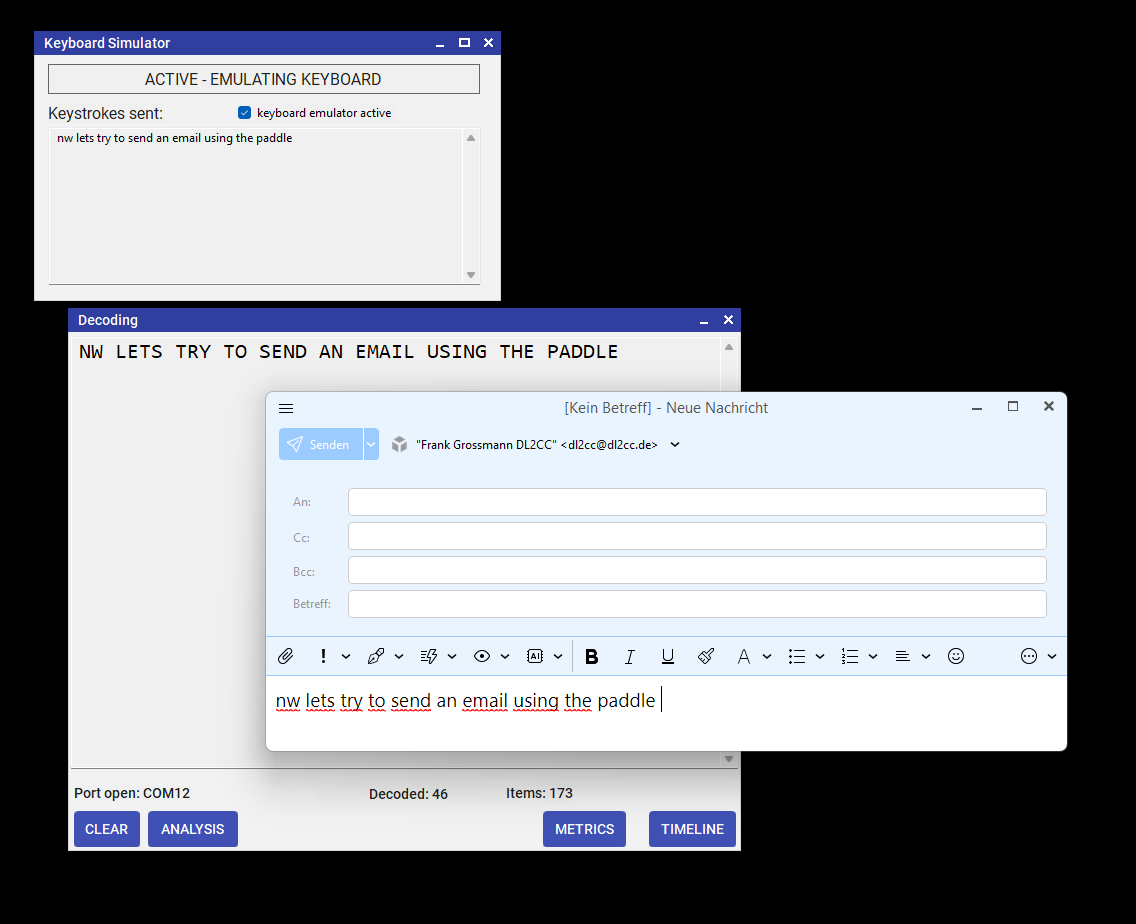
Keyboard Simulator — key Morse on your paddle, characters appear as keystrokes in any app
How to Use
- Open Tools → Keyboard Simulator from the dashboard.
- Ensure the DL2CC Box is connected and keyer input is active.
- Enable Always on Top so the Simulator stays visible while you work in another application.
- Key VVV= on your paddle to arm the Simulator (the status indicator turns green).
- Click on the target application to give it keyboard focus.
- Every character you key is injected as a keystroke directly into that application.
Error Correction
Send the standard CW error prosign — eight dots (········) — and the Keyboard Simulator injects a Backspace keystroke, deleting the last typed character in the target application.
Activity Log
The Simulator window shows a live log of every injected character, so you can verify what was sent.
CW Audio Generator
Generate Morse code audio from any text. Useful for practice recordings, checking competition text before a session, or listening to a phrase at a target speed.
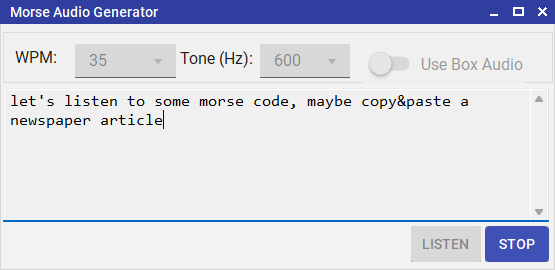
CW Audio Generator — convert any text to Morse code audio instantly
Controls
| Control | Description |
|---|---|
| Text input | Type or paste any text. All standard Morse characters (A–Z, 0–9, common punctuation and prosigns) are supported. |
| WPM | Playback speed in words per minute. |
| Farnsworth speed | Optional effective speed — characters play at WPM but inter-character spacing is stretched. Must be ≤ WPM. |
| Frequency (Hz) | Sidetone pitch, 300–1000 Hz. |
| Play | Start playback immediately through PC speakers / headphones. |
| Stop | Interrupt playback at any time. |
PC Audio Output Device
DL2CC-REMOTE-CW plays its generated audio (Morse tones, AI chat replies, pile-up streams, playback recordings) through a Windows audio device. By default it follows the system default output, but you can pick a specific device — useful when your Windows default is a speaker set you don't want to use for CW practice, or when an app ends up pinned to the wrong device by Windows.
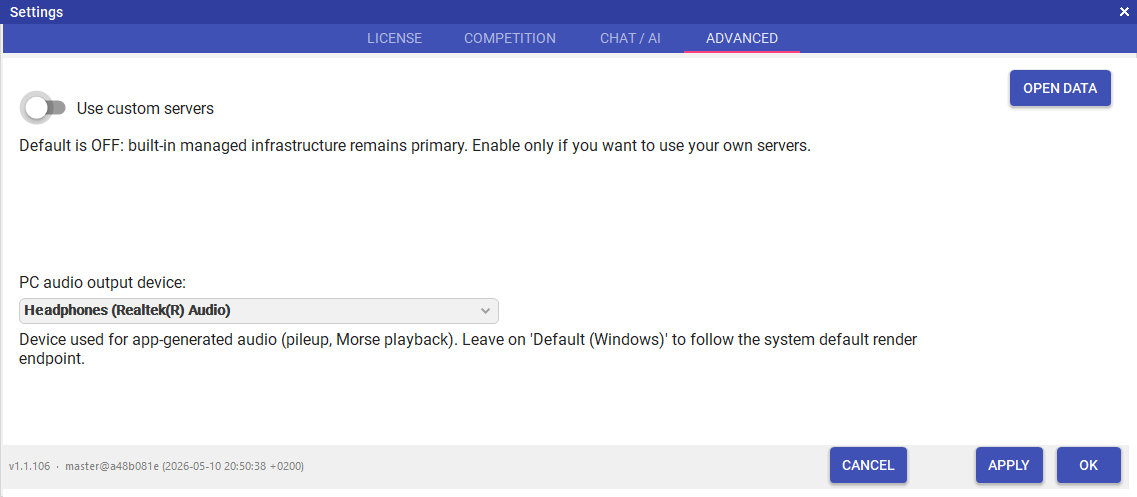
Settings → Advanced — PC audio output device picker and Custom Servers toggle
Open Settings → Settings → Advanced and choose the device under PC audio output device. Pick Default (Windows) to keep following the system default render endpoint. The choice is saved per user and applies immediately on the next playback.
Features that use this setting
All features that generate audio on the PC side (rather than through the DL2CC Box hardware) route through this device:
- Koch Trainer — when Audio Source is set to PC.
- Advanced Trainer — when Audio Source is set to PC.
- PileUp Competition.
- Listening Quiz (training and competition variants) — in PC audio mode.
- Quality RX (Newcomer and Competition).
- TX Competition — feedback audio.
- AI Chat, Morse Chat and the Morse Game.
- CW Audio Generator (above).
Box audio (DL2CC Box hardware sidetone), the Remote Station's rig-audio playback, and the software sidetone in the Keyer window are independent of this setting — they follow the audio device chosen in FormRemoteConnect instead, so that key-side audio stays paired with the remote audio you're already listening to.
Windows 11 lets you pin individual apps to a specific output
device under Settings → System → Sound → Volume mixer
(or run ms-settings:apps-volume). If DL2CC-REMOTE-CW still plays
on the wrong device after picking one here, check that the
app isn't overridden there.
Windows only lets you change an app's per-app device assignment while the app is actively producing audio, so start a playback in DL2CC-REMOTE-CW first, open Volume mixer during that playback, and change the device there.