Competitions & Challenges
DL2CC-REMOTE-CW includes competition and practice formats for solo use and organised events with multiple participants. Results are scored, saved, and can be uploaded automatically.
TX Competition
Key a reference text on your paddle. Scored on accuracy, timing, and error types.
Jump to section →RX / Listening
Listen to CW text at speed and transcribe it. Newcomer and Competition modes.
Jump to section →Competition Mode
Supervised events with participant management, result collection, and scoreboard upload.
Jump to section →RufzXP — Callsign Speed Trainer
RufzXP is available in DL2CC-REMOTE-CW in two modes. Hear a callsign, answer correctly, and the speed increases. Make a mistake and it is reduced again.
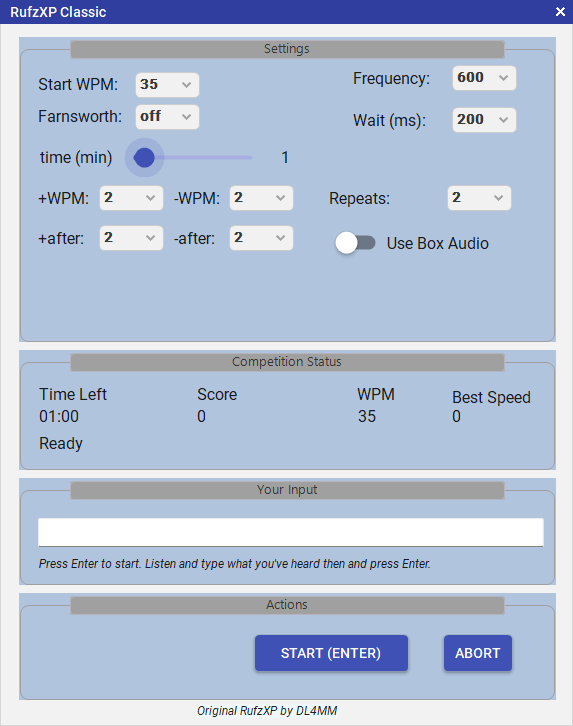
RufzXP Classic — type the callsign you hear; speed adapts on every answer
TX Mode — RufzXP TX!
Hear a callsign and key it back on your paddle. The built-in decoder checks your CW. Requires the DL2CC Box.
Classic Mode
Hear a callsign and type it on your keyboard. Listening and copy practice with no hardware needed.
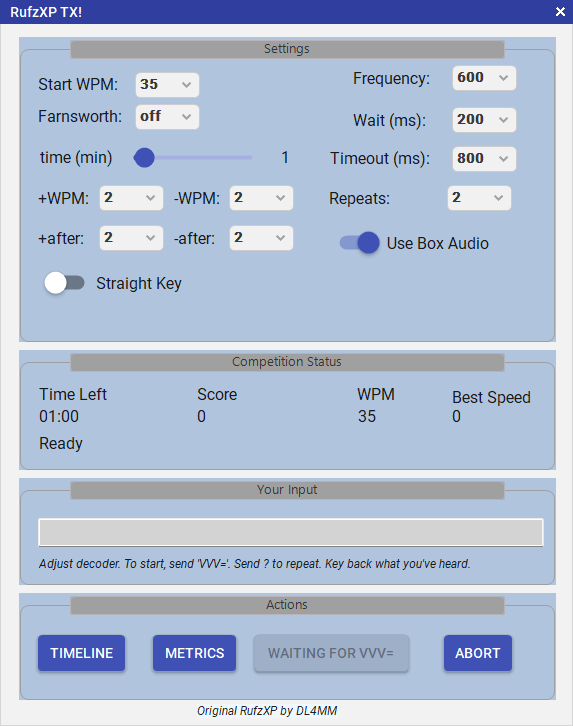
RufzXP TX! — key the callsign you heard on your paddle; decoder checks your timing
Settings
| Setting | Description |
|---|---|
| Starting WPM | Speed at which the first callsign is played. |
| WPM step (±) | How many WPM to add/subtract on correct/wrong answer. |
| Single Speed Mode | Lock the speed to a fixed value — no adaptive changes. |
| Farnsworth | Extra spacing between characters for comfortable practice at any speed. |
| Competition Duration | Fixed 3-minute timer when running inside Competition Mode. |
| Box Audio | Play CW through the DL2CC Box sidetone instead of PC speakers. |
| Retries per callsign | How many attempts before moving to the next callsign. |
| Wait (ms) | Pause after each answer before the next callsign is sent. Applies to both modes. |
| Timeout (ms) | How long to wait for your keyed answer before moving on. TX! mode only — Classic submits with the Enter key. |
PileUp Competition
Multiple callsigns call simultaneously, each on its own frequency, at its own speed, with its own signal character. Copy as many as you can before time runs out.
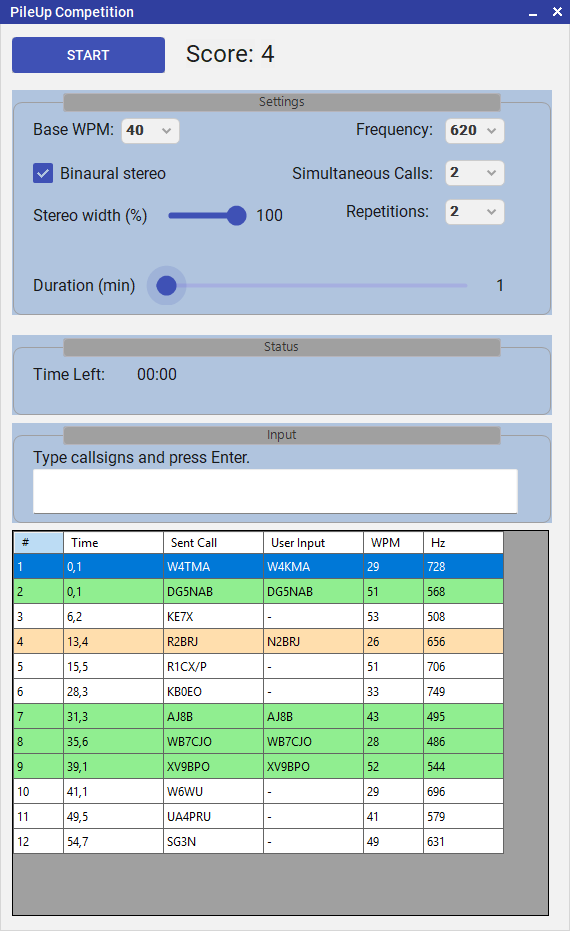
PileUp Competition — multiple simultaneous CW streams at different audio frequencies
Features
- Multiple simultaneous CW streams — configure how many stations are calling at once.
- Callsigns from MASTER.SCP — the same database used in major HF contests.
- Adjustable base WPM, repetition count, and session duration.
- Keyboard or hardware keyer input for entering copied callsigns.
- Live scoring — correct, missed, and total counts updated in real time.
- Results display — at the end you get a table of the callsigns sent in the pileup together with every callsign you entered. Correct copies are shown green, your wrong entries red, and callsigns you never worked stay white.
- Binaural stereo — optional spatial pan that places each caller left or right by tone frequency, so you can pick out individual stations more easily on headphones. See below.
- Competition Mode integration — when opened from the Competition Manager, fixed settings are applied automatically (3 minutes, 2 simultaneous callsigns, 2 repetitions) and results are collected into the competition scoreboard.
How the Mix Is Built
Every callsign in the pileup is generated independently, with its own frequency, speed, start time, and signal character.
| Parameter | How it varies |
|---|---|
| Frequency | Base frequency ± 150 Hz, with at least 50 Hz separation enforced between simultaneous callers. |
| Speed | Base WPM ± 15 — callers run at different speeds, so you can't lock onto a single rhythm. |
| Start timing | Random delay of 0–1500 ms per caller, so the pileup builds rather than hitting all at once. |
| Signal character | 60 % clean standard tone; 40 % a randomly drawn style from the signal preset library. |
Signal Presets
The preset library covers a range of signal imperfections you'd encounter on a real band:
- Standard — clean sine wave, perfect 1:3 dot/dash ratio.
- Chirpy / Chirpy short ratio — the tone slides in frequency during each element; short-ratio variant also compresses the dash.
- Elbug / Elbug variations — stretched dash ratio (up to 1:5) with timing variation, simulating a bug or improperly adjusted electronic keyer.
- Flutter / Flutter Elbug — amplitude modulation with QSB-style fading and noise, simulating a weak or disturbed signal.
- Click humming / Elbug Humming — key click artefact or 60 Hz power-supply hum mixed into the signal.
- Farnsworth — fast character elements with stretched word spacing.
How to Use
- From the dashboard, click PileUp → PileUp Competition.
- Set the number of simultaneous callers, WPM, and duration.
- Click Start. Multiple CW streams begin playing at different audio frequencies.
- Type or key each callsign you copy and press Enter to log it.
- At the end of the session, your score and the full callsign list are shown.
Binaural Stereo (pile-up aid)
With several stations calling on slightly different audio frequencies, separating them by ear alone is hard. Tick Binaural stereo in the PileUp window and DL2CC-REMOTE-CW spreads the simulated stations across the stereo image: callers with a tone below the base frequency lean left, callers with a tone above lean right, and a station right on the base frequency stays centred. The effect uses a constant-power pan, so a centred signal is no louder than a fully panned one.
Hearing each station from its own direction lets your brain do what it does in a noisy room — pick out one voice from the crowd. It works best with stereo headphones; on a single speaker or a mono setup the channels mix back to the centre and you lose the benefit.
Below the checkbox a Stereo width (%) slider appears. 100 % maps the full ±150 Hz spread to full-left / full-right; lower values keep the panning more subtle. 0 % is effectively mono.
TX Competition
The TX Competition measures the quality of your transmitted CW. A reference text is displayed and you key it on your paddle or straight key. DL2CC-REMOTE-CW decodes your sending in real time and compares it to the original, scoring every character.
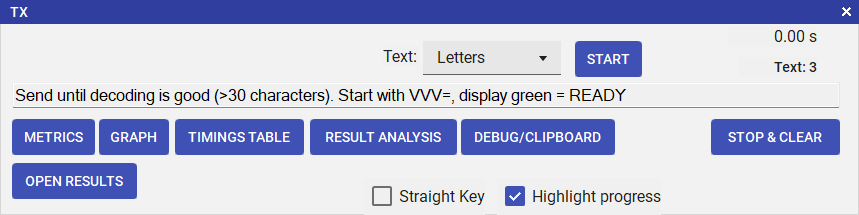
TX Competition window
How to Use
- From the dashboard, click TX Competitions → TX.
- Select a text set (letters, numbers, mixed, or callsigns).
- A training text is shown first. Key freely and watch the decoder windows — the decoder calibrates to your timing. Continue until decoding looks clean.
- When ready, send VVV=. The window shows GO and the competition text is displayed.
- Start keying — the timer begins with your first element. Set how long a run lasts with the Run length (s) box on the TX window (default: 60 s). In a supervised competition the run length is fixed centrally (Settings → Competition), so the box is hidden there.
- Results appear when you finish or the timer expires — accuracy, errors, and timing metrics are all displayed.
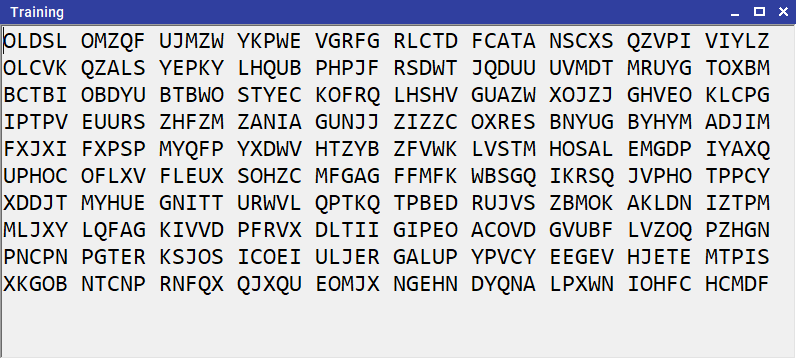
Reference text selection — choose category and sequence number
Scoring & Analysis
The score is calculated from three components:
| Component | Formula | What it measures |
|---|---|---|
| Position | (60 ÷ time limit) × last correct position | How far you got through the reference text correctly. Normalised to a 60-second baseline so scores are comparable across different time limits. |
| Error penalty | − errors × 5 | Each wrong, missing, or extra character costs 5 points. Errors are found by sequence alignment (Wagner-Fischer) against the reference. |
| Spacing penalty | − |expected spaces − sent spaces| | Absolute difference between word spaces in the reference and in what you sent, at 1 point per space off. Penalises sloppy word spacing. |
The score is floored at zero — it cannot go negative.
- Character-by-character alignment — each sent character is colour-coded: match, insertion, deletion, or substitution.
- Timing metrics — dot/dash ratios, WPM, and LPM are tracked throughout.
- Straight key mode — an alternative decode tolerance, more generous for straight key operators.
- File output — full result detail saved automatically to your configured output folder.
Why TX Is Valuable for Training
- Objective feedback — you see exactly what your keying produced, not what you intended.
- Error pattern learning — substitutions/insertions/deletions reveal recurring habits quickly.
- Timing control — ratio and spacing metrics make speed increases safer and cleaner.
- Structured repetition — generated text sets let you practice focused drills repeatedly.
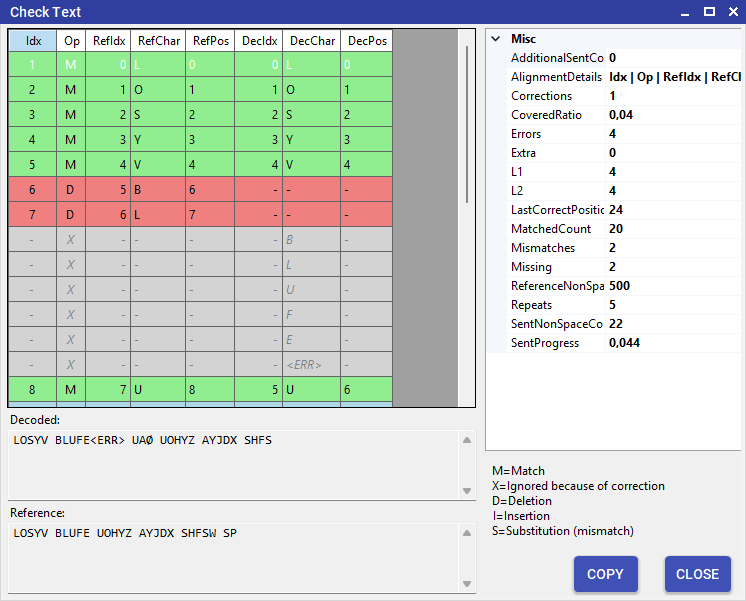
TX Competition analysis — character alignment with colour-coded match/error view
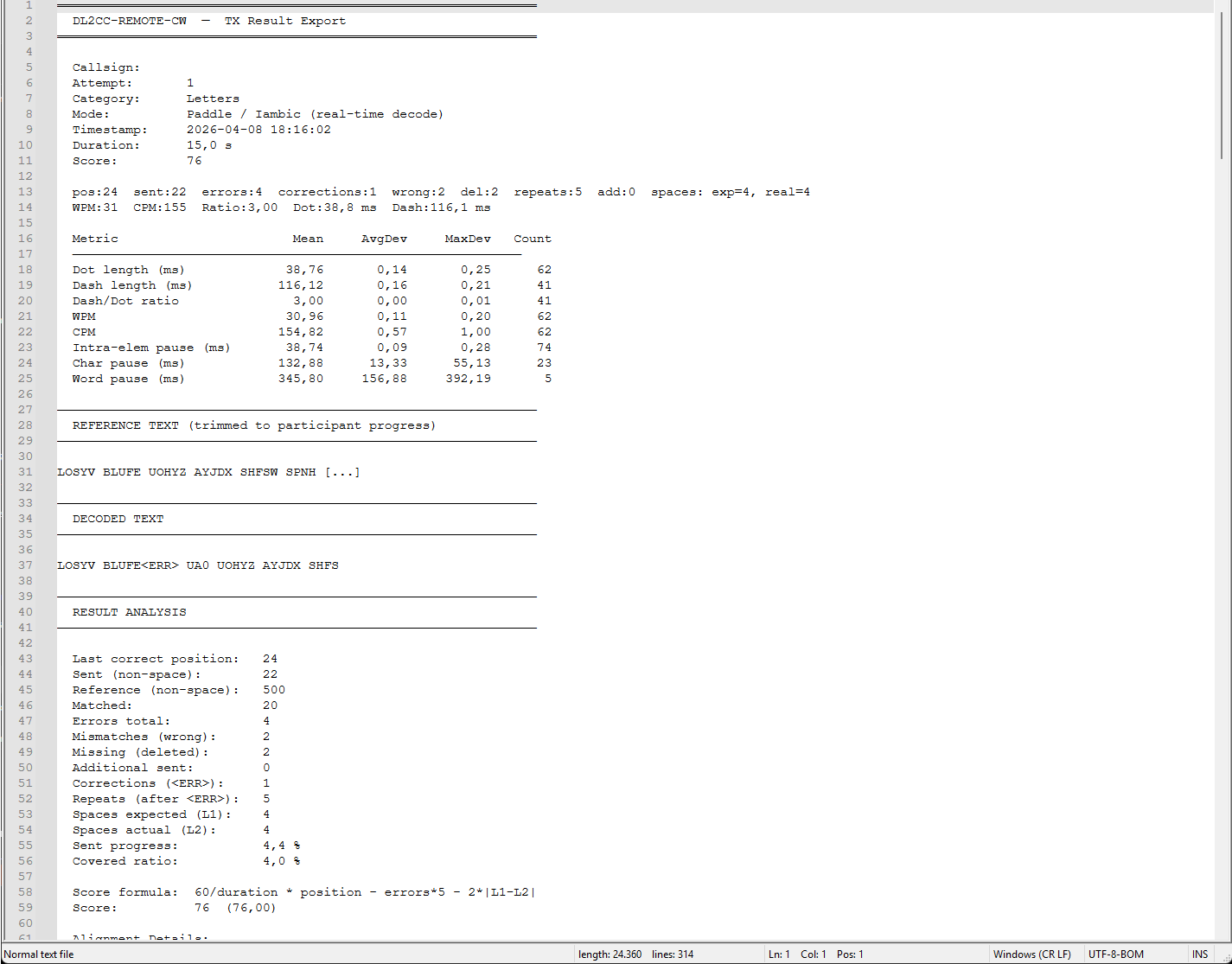
TX results (1) — accuracy score and metrics summary
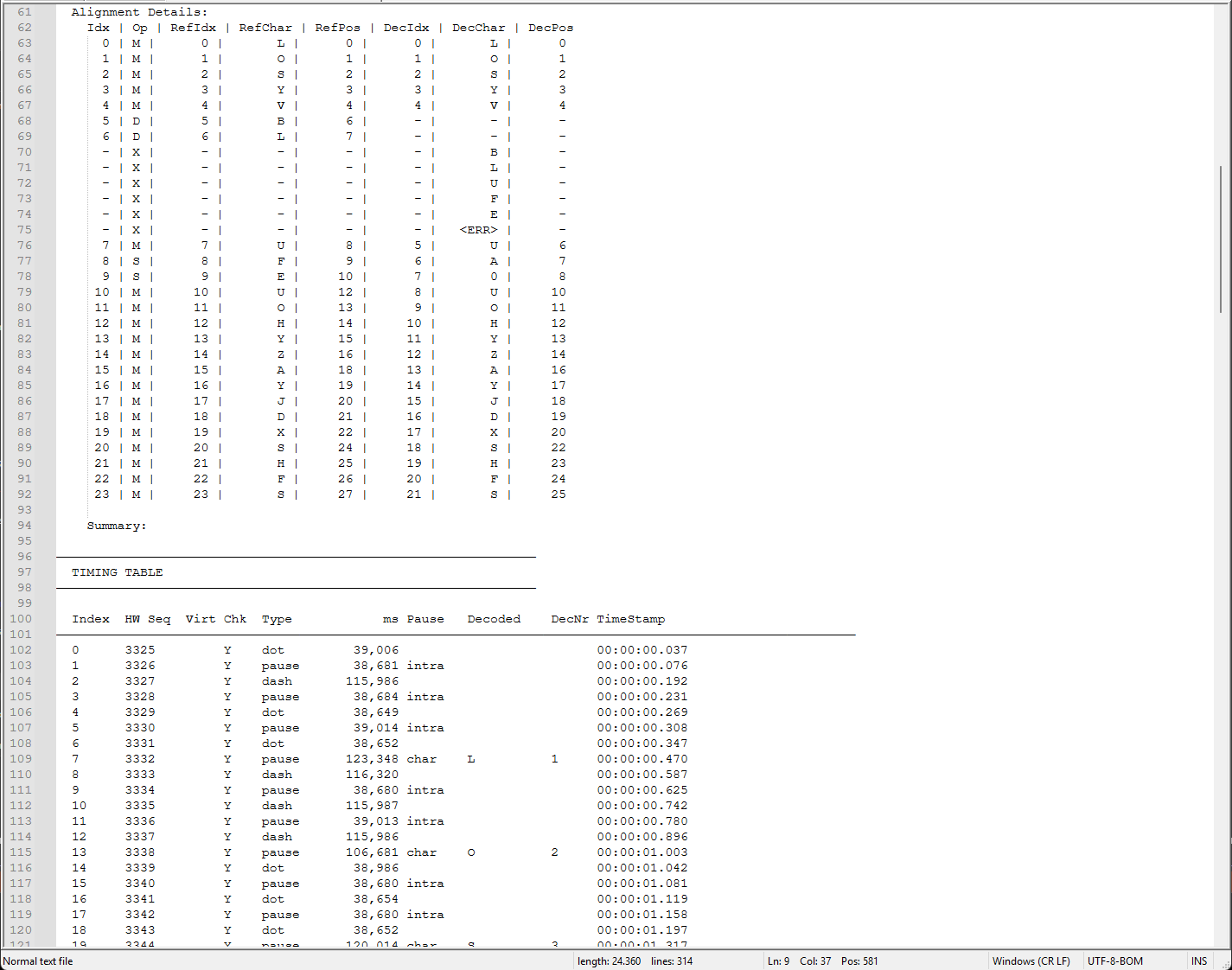
TX results (2) — detailed timing and element analysis
Generating Texts
Use TX Competitions → Generate Texts to create randomised competition texts. Choose letter groups, numbers, mixed, or callsigns. Texts can be exported to PDF for printing reference sheets. Sequence numbers keep sets organised for structured practice events.
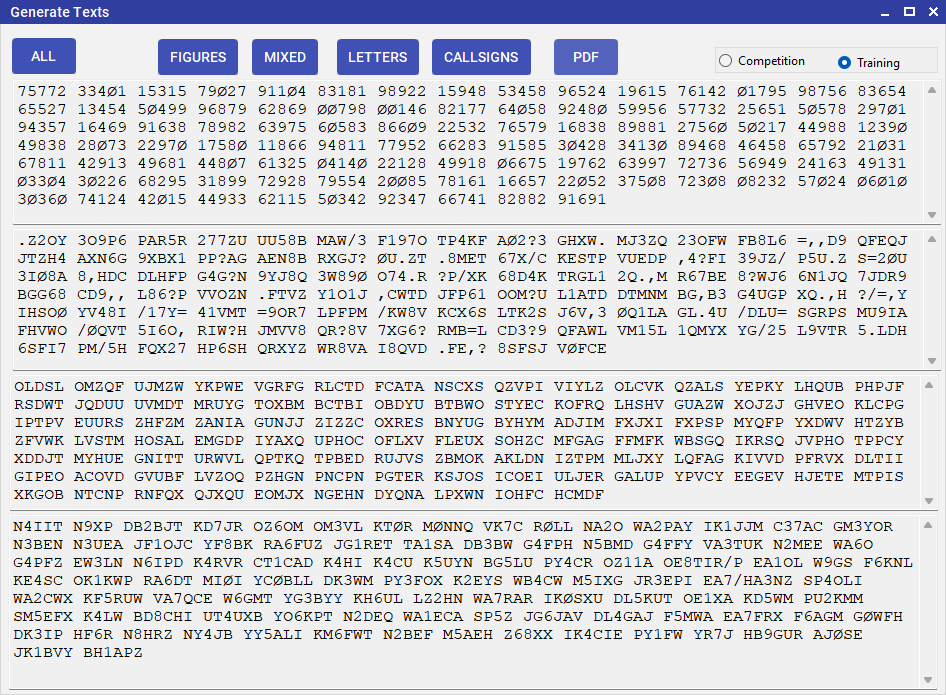
Generate Texts — randomised competition text sets ready for training and events
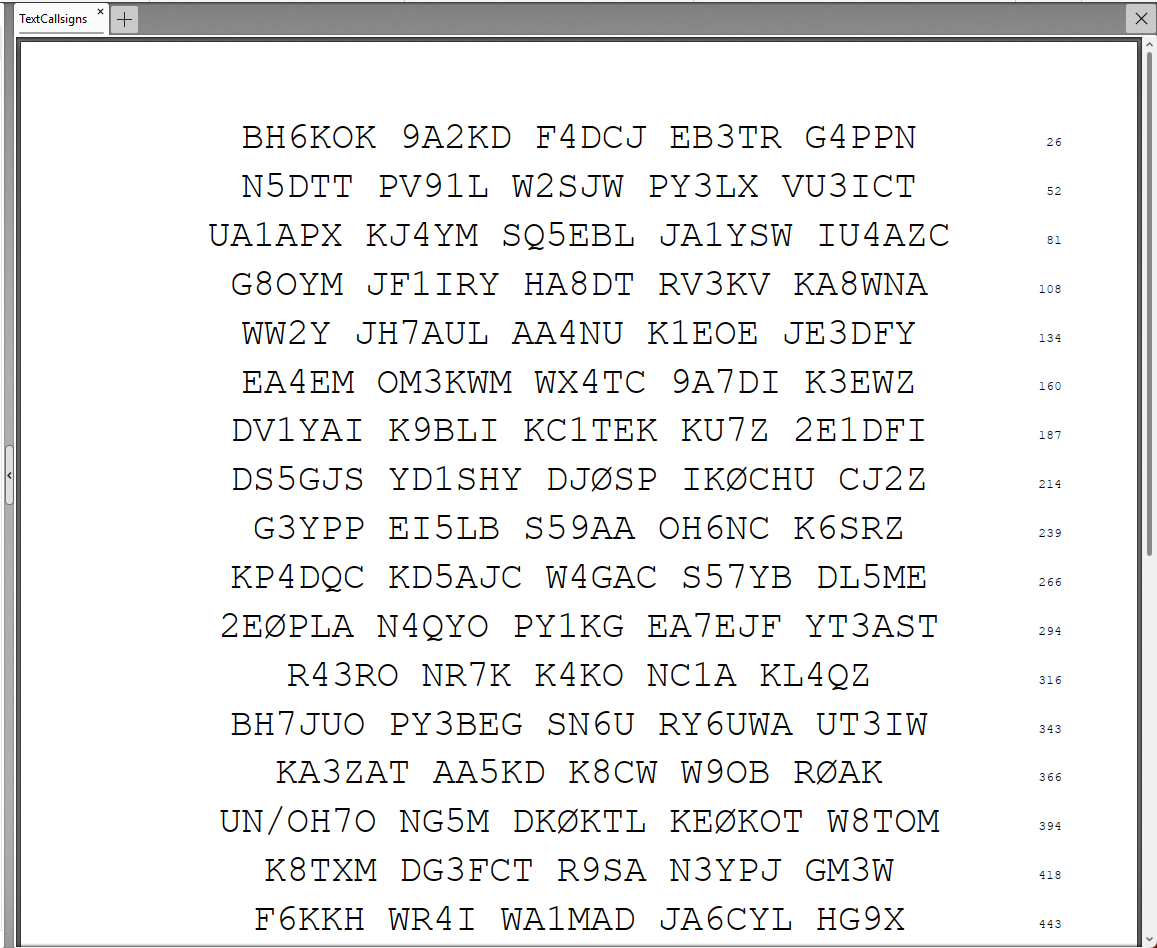
PDF export — printable reference sheets for on-site competition use
RX / Listening Competitions
Listening tests measure your ability to copy CW audio correctly. A text is played at a set speed and frequency — you type what you hear. DL2CC-REMOTE-CW scores your accuracy automatically.
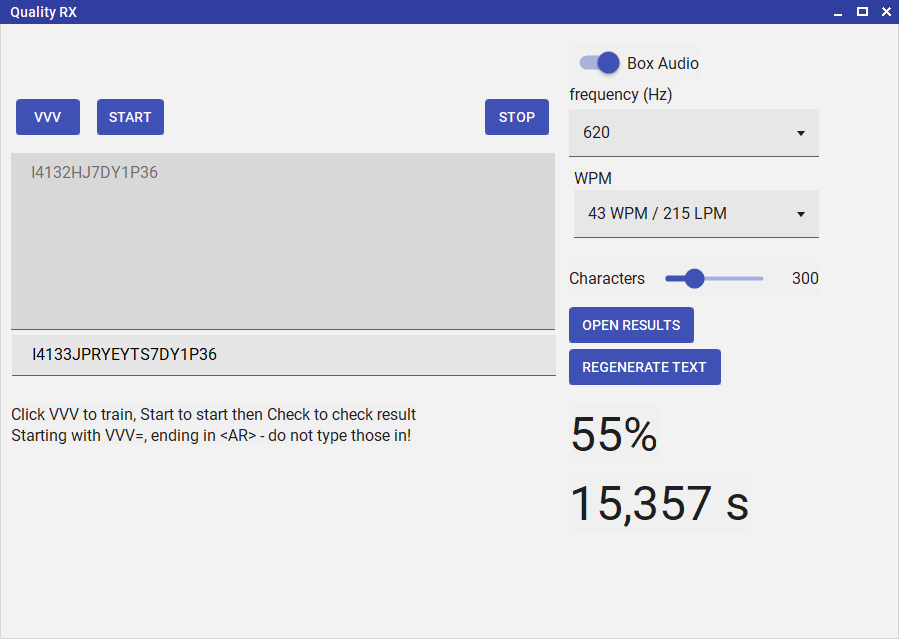
Quality RX — Listening Competition window showing copy input and accuracy scoring
| Mode | Audience | Text Length | Character Spacing |
|---|---|---|---|
| Newcomer | Beginners | ~100 characters | Extended (Farnsworth-style) |
| Competition | Experienced operators | ~300 characters | Standard operating speed |
| Training | All levels | Configurable | Configurable; results replayable |
How to Use
- From the dashboard, select the appropriate mode under RX Competitions.
- Choose the text speed (LPM / WPM), frequency, and text length.
- Click Start. The CW audio begins playing.
- Type what you hear into the answer field.
- When the text ends (or in Training mode when you click Stop), your answer is scored as a similarity percentage.
Why RX Is Valuable for Training
- Step-by-step progression — newcomer mode for easier entry, competition mode for stress testing.
- Controlled practice variables — speed, frequency, and text length are adjustable.
- Repeatable sessions — training mode allows focused repetition with measurable improvement.
- Clear scoring — similarity percentage provides direct feedback after each run.
Listening Quiz
The Listening Quiz plays a Morse text at a given speed and then presents four multiple-choice answers. Listen carefully, then pick the correct option (A/B/C/D). Questions are loaded from CSV files so you can easily add your own question sets.
Two modes are available: Training (standalone practice with selectable speed) and Competition (supervised event with progressive speed stages managed by the Competition Mode orchestrator).
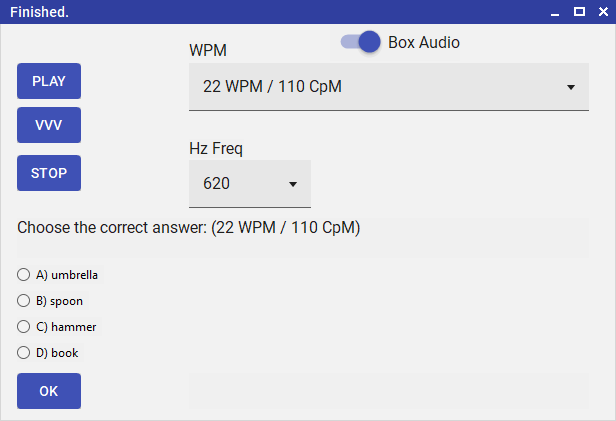
Listening Quiz — select speed, listen to the Morse text, then choose the correct answer
Audio Output
PC Audio
CW tones generated on your PC. Playback timing is inherently precise — the form knows exactly when audio finishes. Routes to the global PC audio output device.
Box Audio (default)
CW played through the DL2CC Box hardware sidetone. The app estimates the playback duration and shows the answer options when the sound is expected to finish.
How to Use — Training Mode
- From the dashboard, open Listening Quiz (training texts) or the competition variant.
- Select a speed from the dropdown (WPM). The app picks the matching question from the CSV.
- Optionally adjust the sidetone frequency.
- Click PLAY. The Morse text is sent with a "VVV=" preamble and "+" (AR) suffix.
- After playback finishes, the four answer options appear. Select one and click OK.
- The result (Correct / Wrong) is shown. The speed automatically advances by 2 WPM for the next round.
How to Use — Competition Mode
- The Competition Mode orchestrator opens the Listening Quiz with a competitor callsign.
- Questions are served in ascending CpM order. Each speed stage allows exactly one playback and one answer.
- Click START to play the current stage. After playback, select A/B/C/D and click OK.
- Click READY to advance to the next speed stage.
- Two consecutive wrong answers trigger a "must be correct" warning. The next wrong answer ends the run.
VVV Preview
Click the VVV button at any time to play a short "VVV" sample at the currently selected speed. This lets you verify audio output and volume before starting the actual quiz.
CSV Question Files
Questions are defined in semicolon-delimited CSV files (UTF-8 encoding). DL2CC-REMOTE-CW ships with two sample files:
- Listening.csv — the competition question set
- ListeningTraining.csv — a separate training question set
Both files cover speeds from 100 CpM (20 WPM) to 490 CpM (98 WPM) in steps of 10 CpM, with one question per speed level.
CSV Format
The first row is a header and is skipped. Each subsequent row defines one question:
| Column | Name | Description |
|---|---|---|
| 1 | Text | The sentence played as Morse code. Should end mid-sentence — the correct answer completes it. |
| 2 | Speed | Speed in CpM (Characters per Minute). The app converts to WPM internally (WPM = CpM ÷ 5). |
| 3 | Question | Optional question prompt shown above the answers. Leave empty to use the default prompt. |
| 4 | Answer1 | Answer option A |
| 5 | Answer2 | Answer option B |
| 6 | Answer3 | Answer option C |
| 7 | Answer4 | Answer option D |
| 8 | CorrectOption | Number 1–4 indicating which answer is correct (1 = A, 2 = B, 3 = C, 4 = D) |
On a very clear and sunny day during the summer, the color of the sky is usually;100;;red;blue;yellow;black;2
This plays "On a very clear and sunny day…" at 100 CpM (20 WPM). The correct answer is B) blue (option 2).
File Locations
On first launch, the sample CSV files are automatically copied into your local data folder:
%LOCALAPPDATA%\DL2CC-REMOTE-CW\Listening\
If you want to use your own questions, place your CSV file in this folder (or in the
application directory under Resources\Texts\). The app searches for files
in the following order:
- Application directory (same folder as the
.exe) Resourcen\,Resources\, orResources\Texts\subdirectories- Local AppData folder (the copy created at first launch)
To customise the competition questions, edit or replace
Listening.csv in the AppData folder. To customise the training set, edit
ListeningTraining.csv. The header row must be preserved. Rows with a
CpM value ≤ 0 or a CorrectOption outside 1–4 are silently skipped.
. , ? / = +). German umlauts (ä, ö, ü, ß) are automatically
converted to their two-letter equivalents (ae, oe, ue, ss). Characters not representable
in Morse are replaced with spaces.
Personal Best — Your High Scores
DL2CC-REMOTE-CW automatically saves your best results after every training session, across all modes. Open High Scores → Personal Best from the dashboard at any time to see how you're progressing.
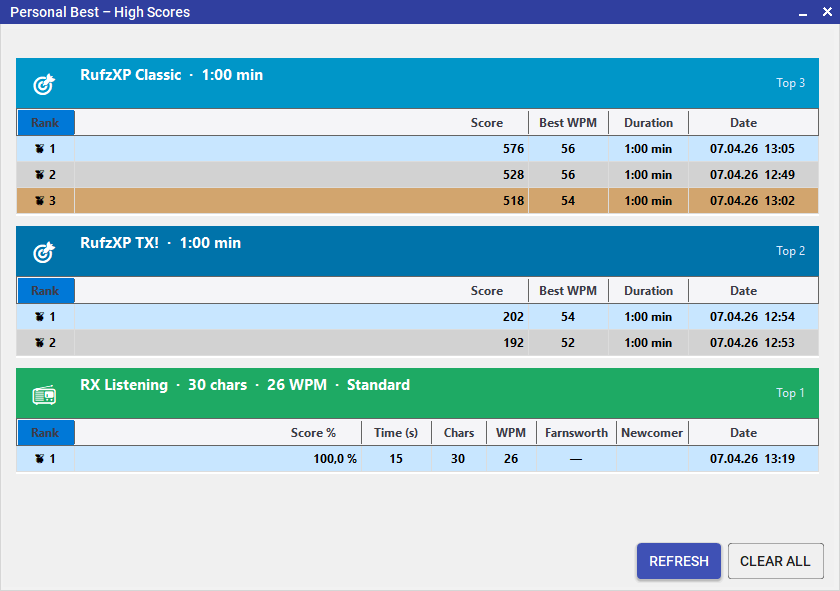
Personal Best — your top-10 high scores across every competition mode
What Is Tracked
| Mode | Score | Grouped By |
|---|---|---|
| TX | Calculated accuracy score | Category (Letters/Mixed/Figures/Callsigns) + duration |
| RX Listening | Similarity % | Character count + WPM + Farnsworth + Newcomer/Standard |
| RufzXP Classic | Final score | Session duration |
| RufzXP TX! | Final score | Session duration |
| Pile-Up | Correct callsigns copied | Duration + simultaneous count + base WPM |
How It Works
- Automatic recording — results are saved silently at the end of every standalone training run. No action required.
- Top 10 per group — each mode/settings combination keeps only the top 10 results by score. The file never grows unbounded.
- Medal ranking — 🥇 🥈 🥉 highlight your gold, silver, and bronze entries within each group.
- Persistent storage — data is written to a local JSON file in your AppData folder and survives app restarts.
- Competition Mode excluded — results from supervised competition sessions are not recorded in Personal Best to keep the data clean.
Competition Mode — Supervised Events
Competition Mode is DL2CC-REMOTE-CW's orchestration layer for running proper on-site competitions with multiple competitors. An operator manages the event from a single window — registering competitors, launching sub-forms in sequence, and collecting all results into a unified scoreboard that auto-saves and uploads.
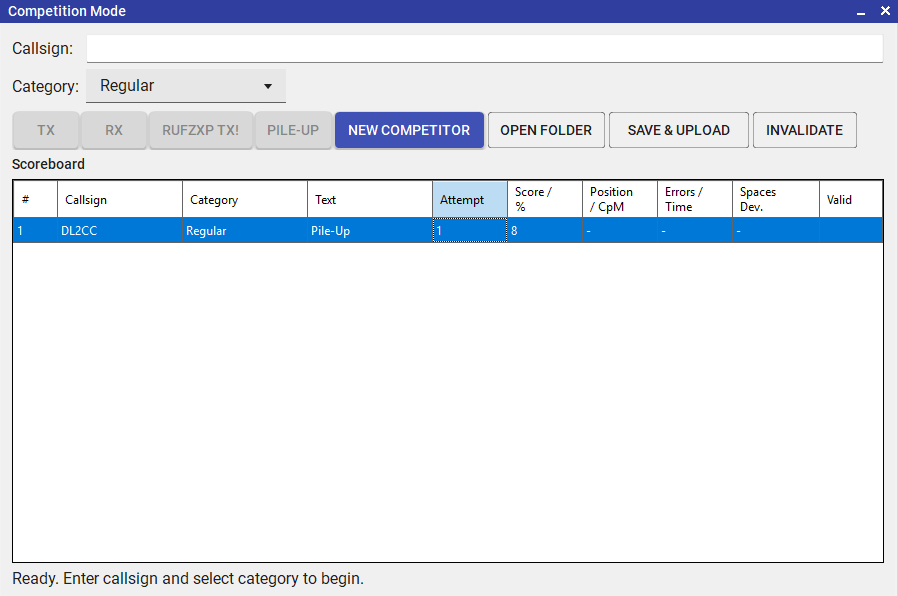
Competition Mode — orchestrator window with scoreboard and competitor management
Choose Which Competitions Count
In Settings → Settings → Competition you decide which disciplines are part of your event. Tick or untick TX, Quality RX, Listening, RufzXP TX! and Pile-Up — any discipline you switch off is simply hidden in the Competition window, so operators only see the ones you are actually running.
The same tab has an Enable Newcomer category switch. Leave it off for a single-class event — the Newcomer option then disappears everywhere and every competitor is a regular entrant. Turn it on to score Newcomers separately from regular competitors.
Max attempts per discipline sets how many scored attempts each competitor gets in every competition (the default is 2; for TX it counts per text category). Once a competitor has used all their attempts in a discipline, further runs are no longer recorded. If you invalidate one of their attempts on the scoreboard, that slot frees up so they can run it again — and the attempt number shown in the scoreboard never climbs higher than the maximum you set here.
The Pile-Up competition settings (duration, simultaneous callsigns, repetitions, and base speed) are also set here, so every competitor runs the same Pile-Up. During a supervised competition these values are fixed — they cannot be changed in the Pile-Up window.
Event Workflow
- Open Competition from the dashboard (must be enabled in Settings first).
- Enter the competitor's callsign. If the Newcomer category is enabled, also pick their category (Regular or Newcomer).
- Open one of the enabled sub-forms (TX, Quality RX, Listening, RufzXP, or Pile-Up). Only one can be open at a time.
- The competitor performs their attempt. Results are automatically collected when they finish.
- The result appears instantly in the scoreboard. JSON + CSV files are saved and uploaded.
- Click New Competitor to clear the form for the next participant.
- Click Standings at any time to see a ranked results board per discipline.
Scoreboard & Data
- Live scoreboard — updates after every attempt. Shows callsign, category, and all attempt results.
- Invalidate / Validate — select a row and use the Invalidate button to discard a bad run (a false start, interference, etc.). Invalidated attempts are greyed out and ignored in the standings, and they free up an attempt slot. If the competitor's discipline window is still open, that freed attempt is re-enabled there straight away — in RufzXP just press Restart — so they can run it again without reopening anything. The same button validates a row again if you change your mind.
- Standings — the Standings button opens a ranked board showing, for each discipline, every competitor's callsign and best result, with 🥇 🥈 🥉 medals for the top three. Regular and Newcomer competitors are ranked separately. You can leave this window open — it refreshes automatically after every attempt.
- Auto-save — results are written to JSON and CSV automatically after each attempt. No data is lost even if DL2CC-REMOTE-CW crashes.
- Supabase upload — results are uploaded to the competition server so remote officials can view the live scoreboard.
- Multi-day support — sessions spanning up to 5 days are handled. Each workstation gets a unique file name so multi-PC setups don't collide.
- Manual Save & Upload button for on-demand synchronisation.
- Open Folder button to access raw result files directly in Windows Explorer.