Morse Trainer
A CW training course based on the Koch method. Characters are introduced one at a time at full speed. You move on only when the current set is secure enough.
The Koch Method
The Koch method teaches CW at full character speed from the start. You begin with two characters and add a new one only when your accuracy on the current set exceeds the target threshold.
- Characters are introduced in a proven standard Koch order by default.
- The trainer focuses extra attention on the characters you find most difficult.
- Session length is configurable — set how many items per session before a checkpoint.
- Your progress is saved automatically in a profile so you can continue later.
How the Character Selection Logic Works
The trainer does not build the full session in advance. Instead, each next character is selected during the session based on your current performance.
- Characters you struggle with are selected more often.
- Well-learned characters are still mixed in regularly to avoid forgetting.
- The newest unlocked character is kept at a minimum share in the session so it does not disappear too early.
- The weighting updates continuously after each scored answer.
Starting the Trainer
- From the dashboard, click Learn → Morse Trainer.
- Select or create a profile (your saved progress). Multiple learner profiles are supported.
- Open Settings to configure WPM, Farnsworth speed, and items per session.
- Click Start Session.
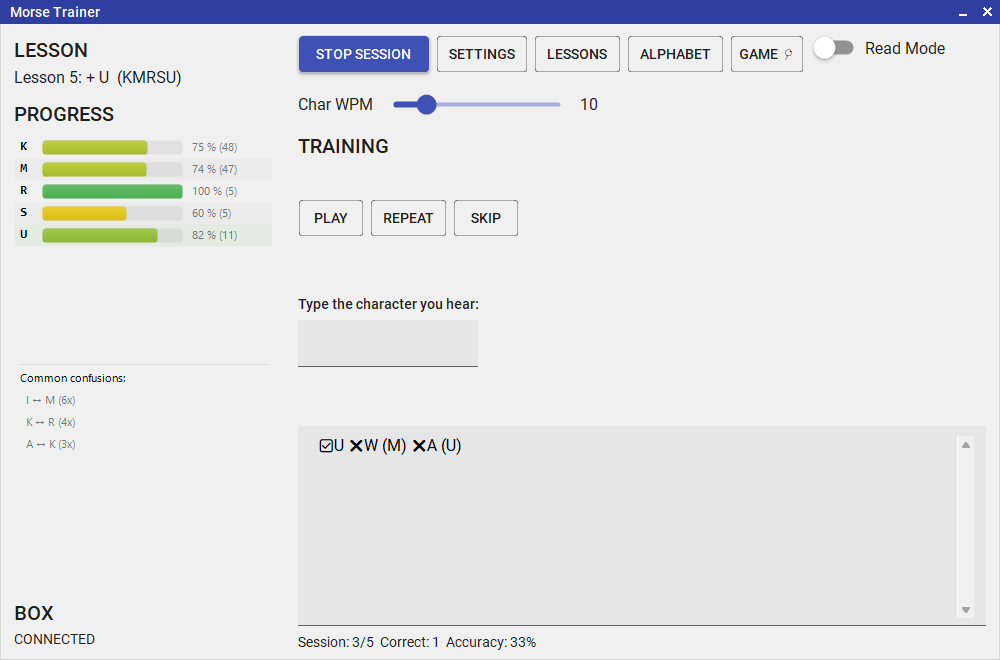
Morse Trainer — session in progress
Input Modes
Keyboard
Type the character you heard on your keyboard. Great for pure listening practice with no hardware required.
DL2CC Box Paddle
Key the answer on your physical paddle. The decoder checks your CW, so you practice listening and sending together.
Audio Output
PC Audio
CW tones are generated and played directly through your PC speakers or headphones. No hardware needed.
Box Audio
Prompts are sent to the DL2CC Box and heard through its hardware sidetone output.
Session Settings
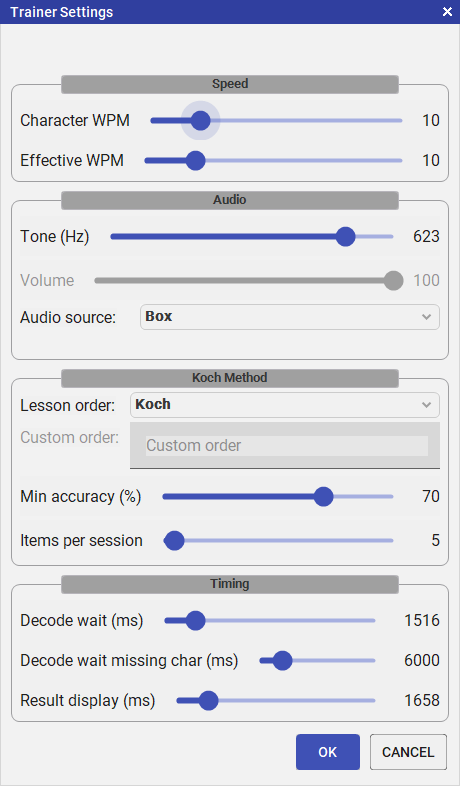
Trainer Settings Window
| Setting | Description |
|---|---|
| WPM (character speed) | Speed at which individual characters are sent. This is your real operating speed — do not set it lower than your target. |
| Farnsworth Speed | Effective word speed (spacing). Must be ≤ WPM. Lower values = more thinking time between characters. |
| Items Per Session | How many characters/words are played before the session ends and progress is saved. |
| Audio Source | PC speakers or DL2CC Box. When PC is selected, the actual Windows output device is configured globally in Settings → Advanced → PC audio output device. |
| Input Mode | Keyboard or DL2CC Box paddle |
Profiles & Progress
Each learner has their own profile that stores:
- Current Koch level (which characters have been unlocked)
- Per-character accuracy history
- Session completion count
- Item history for intelligent re-testing of weak characters
Profiles are saved as JSON files in the application data folder and are automatically loaded on startup. Click Lessons in the trainer to see your current level, unlock specific lessons manually, or reset progress.
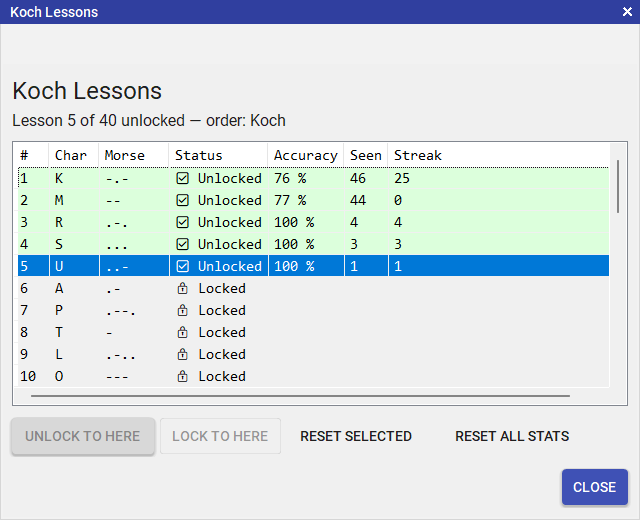
Lesson Progress Overview
Web Morse Trainer
The same Koch trainer in your browser — nothing to install. Open it at dl2cc.de/morsetrainer.
The full guide is on its own page — the lessons, per-character progress, the alphabet and Balloon Burst, the optional DL2CC Box on a desktop browser, browser support, and the screenshots. See Web Tools → Web Morse Trainer.
Your progress isn't synced automatically, but you can move it between
the PC and web versions by copying the trainer's settings file
(default.json) across — see
Moving Your Progress Between Web
and Desktop.
Advanced Trainer
Training beyond the Koch progression, using the full character set at your own pace.
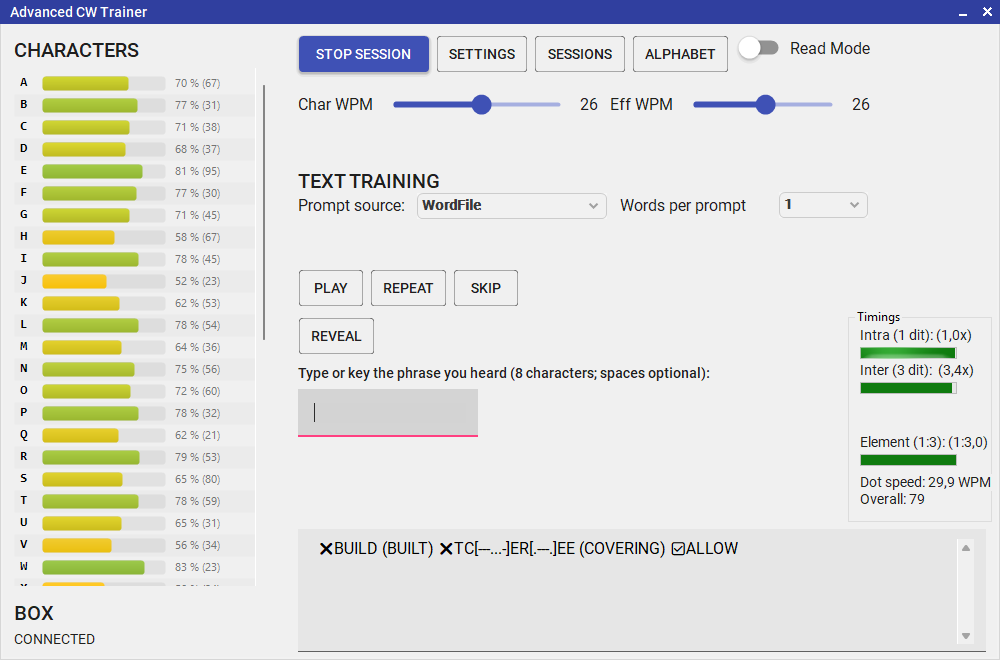
Advanced Trainer — character selection, group size, and text database options
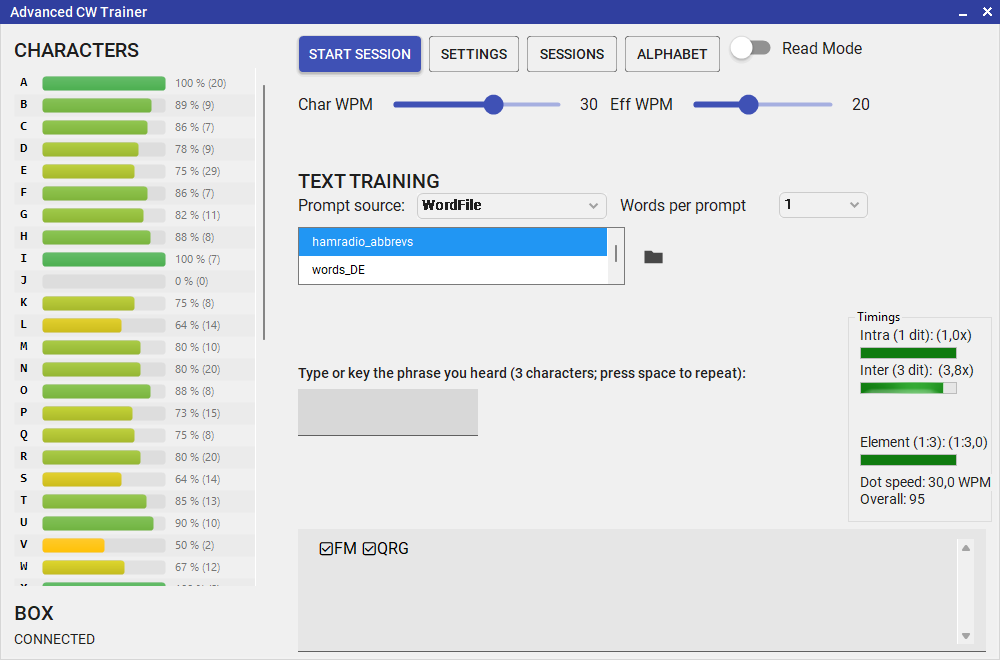
Advanced Trainer — active session with live scoring and character feedback
Prompt Sources and Dictionaries
The Advanced Trainer supports three prompt source modes:
- WordFile: words or short tokens from dictionary text files
- Groups: random character groups from the full character set
- Callsigns: random callsigns from the included callsign pool
On first use, the Advanced Trainer starts in Groups mode with a group length of 2 at 20 / 10 WPM (Farnsworth). Your choices are saved, so on later runs it reopens with whatever you used last.
The program includes built-in dictionaries for English words, German words, and ham radio abbreviations, plus a Callsigns pool based on the well-known MASTER.SCP list.
You can add your own WordFile dictionaries: click the folder icon next to
the file list in the Advanced Trainer to open the local texts folder, then add a UTF-8
.txt file with one word or token per line. New files appear automatically in
the file list.
Key Differences from the Koch Trainer
| Aspect | Koch Trainer | Advanced Trainer |
|---|---|---|
| Character set | Progressive (one new character per level) | Full set always (A–Z, 0–9, / = ? .) |
| Input | Keyboard or Box keying | Keyboard or Box keying |
| Prompt options | Koch-character prompts | WordFile / Groups / Callsigns, with items-per-prompt and group-length options |
| Profile | Separate per learner | Single shared "advanced" profile |
Using the Advanced Trainer
- From the dashboard, click Improve → Advanced Trainer.
- Optionally connect your Box for keying input and Box audio output.
- Select a prompt source (WordFile, Groups, or Callsigns).
- Configure WPM/Farnsworth and source-specific options (items per prompt, group length).
- Click Start. Selection adapts continuously to your current performance.
- Type each heard character, or key it on your paddle. Results are scored and saved automatically.
When keying on the paddle, your answer is evaluated after a short pause once you stop sending — not the instant you reach the expected number of characters. You can keep keying past the expected length; any extra characters are counted and the answer is then marked wrong.
When you are listening to an audio prompt of a single word or group, press the Space bar to replay it.
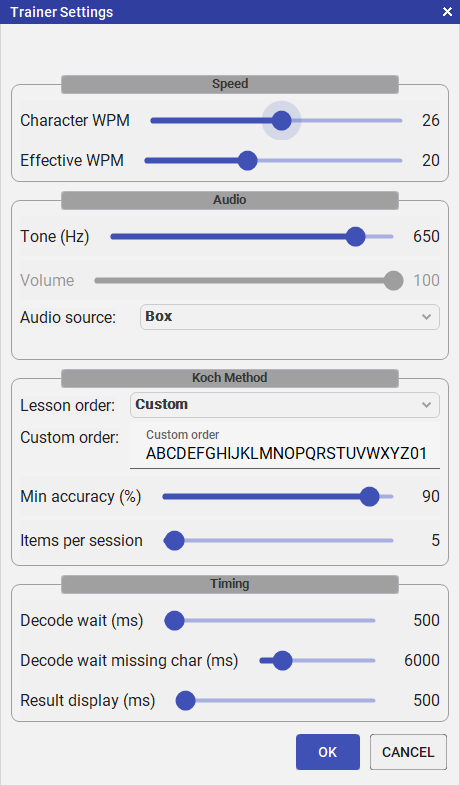
Advanced Trainer settings — WPM, Farnsworth, characters per group and Audio Source
The Advanced Trainer uses the same global PC audio output device setting as every other PC-side player. To send the audio to a different speaker set or headphone output, change it once in Settings → Advanced.
Read Mode
Read Mode turns the exercise around: instead of listening and writing down what you hear, the prompt is shown on screen and you send it on your paddle. It is a sending drill, so it needs a connected Box for keying, and the toggle stays disabled until a Box is found.
As you key, the characters the decoder recognises appear live in the input box, so you can watch your sending being read back. The final character appears once you stop sending and the short decode pause has passed.
Session History
Open Sessions inside the Advanced Trainer to review all past session scores, accuracy over time, and character-level statistics. You can also reset the advanced profile from this view.
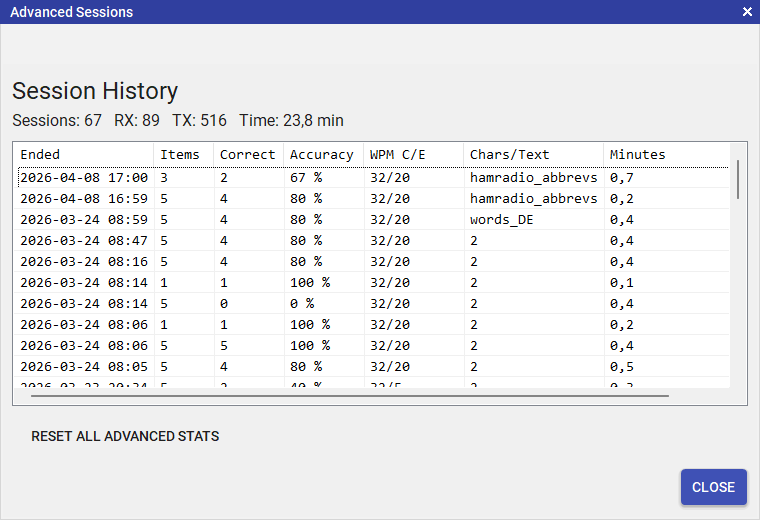
Session History — accuracy over time and character-level statistics
Balloon Burst Game 🎈
A fast-paced Morse keying game that makes character recognition practice genuinely fun.
Balloons carrying random characters float upward across a dark canvas. Type the matching character on your keyboard — or key it on the DL2CC Box paddle — and the balloon bursts in a satisfying pop. Miss a balloon and it sticks to the ceiling and balloons begin to stack on top of each other — if any column grows five balloons deep, the game ends. Speed and spawn rate increase with every level, pushing your keying reflexes harder.
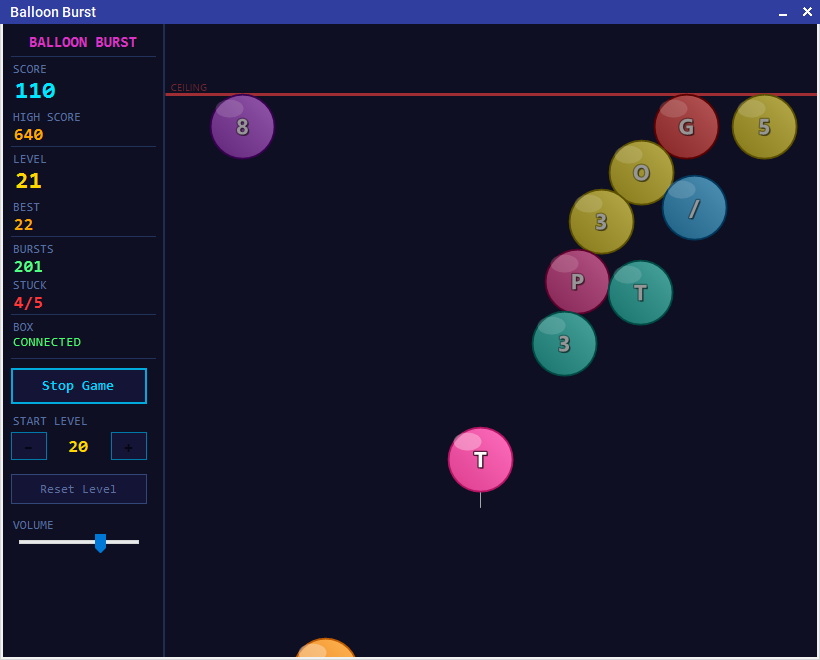
Balloon Burst — type or key the character to pop balloons before they stack to the ceiling
How to Play
- Open Learn → Balloon Burst from the dashboard, or click Game inside the Morse Trainer.
- No hardware is needed — the keyboard alone works. Optionally connect the DL2CC Box to key on a paddle as well (paddle keying needs a desktop browser).
- Click Start Game. Balloons begin floating up immediately.
- Type the character shown on any balloon, or key it on the box paddle. On a phone or tablet, tap it on the on-screen keyboard. Any balloon in the air can be burst at any time — not just the lowest one.
- If a balloon reaches the ceiling it sticks and stacks on top of previously stuck balloons. A column five balloons deep ends the game.
Character Set
The characters that appear depend on how you launch the game:
| Launch point | Characters used |
|---|---|
| Morse Trainer toolbar → Game | Your current Koch set — only characters you have already unlocked |
| Dashboard → Learn → Balloon Burst | Full character set (A–Z, 0–9, / = ? .) |
Levels and Scoring
Every 10 successful bursts advances you to the next level. Each burst scores 10 points regardless of level.
| Level | Balloon speed | Spawn interval | Max simultaneous balloons |
|---|---|---|---|
| 1 | 55 px/s | 2.5 s | 1 |
| 2 | 67 px/s | 2.3 s | 2 |
| 3 | 79 px/s | 2.1 s | 3 |
| 4+ | +12 px/s per level | −250 ms per level (min 700 ms) | 4 (cap) |
Start Level
Advanced players can skip the early levels. Use the − and + buttons in the sidebar to choose your starting level before the game begins. As you reach new levels during a game, the start level advances automatically so your next game picks up where you left off.
Click Reset Level to set the start level back to 1.
Sound
The game plays short synthesised sound effects for balloon bursts, misses, level-ups, and game over. Use the Volume slider at the bottom of the sidebar to adjust the level; the setting is saved automatically.
Personal Best
Every completed or aborted game records your final score and level to the Personal Best leaderboard — top 10 Balloon Burst runs, ranked by score with the level reached shown alongside each entry.
Morse Alphabet Cheat Sheet
A quick-reference Morse alphabet panel showing all letters, digits, punctuation, and special characters as graphical dit/dah pattern cards. The zero digit is displayed as Ø to distinguish it clearly from the letter O.
The cheat sheet can be opened two ways:
- From the trainer toolbar — it stays visible alongside the training window so you can glance at character patterns without leaving the session.
- Standalone from the dashboard: Learn → The Alphabet.
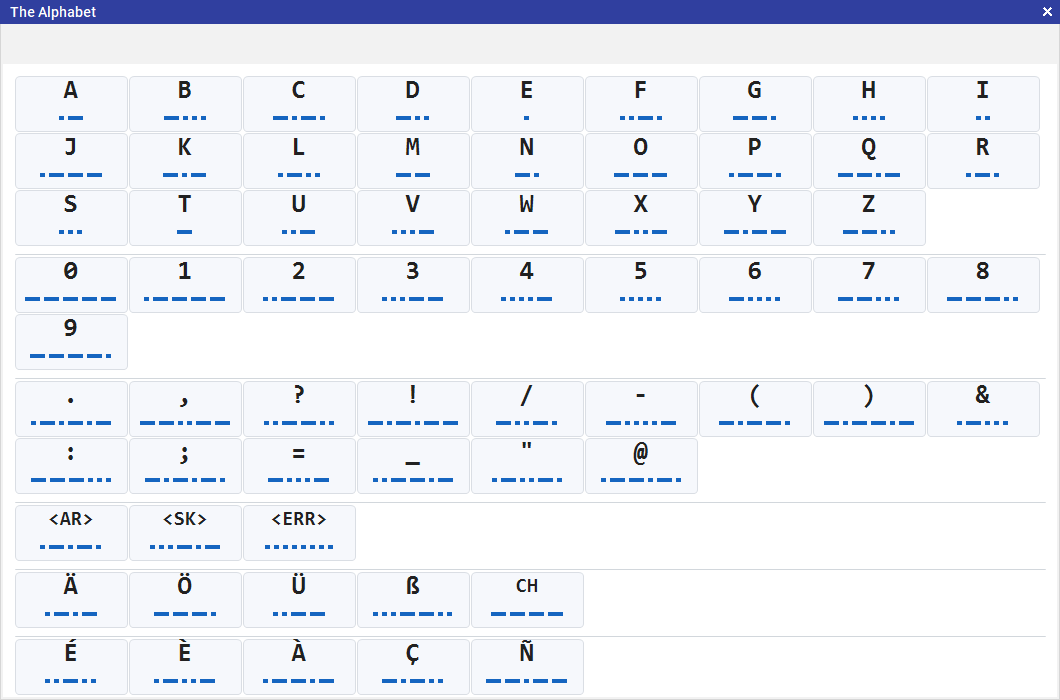
Morse Alphabet Cheat Sheet — quick-reference overlay available during any session